

- What Are Claude Artifacts, Anyway?
- Unleash Your Creativity
- Beyond Claude Artifacts: Taking Your App To Production
- Model Comparison: Which Claude Model Should You Use?
- Claude Co Work: The New Feature You Should Not Ignore
- Troubleshooting Common Issues
- FAQ
- Does my app need to be basic HTML and CSS?
- Can I use a custom domain name for my app?
- Can I customize the app even if I don’t know how to code?
- How do I host apps with multiple files using Tiiny.host?
- Can I use this process to build a portfolio or a website for my business?
- Can I use Claude AI for free?
- What’s the difference between Claude and ChatGPT for coding?
- Can Claude build mobile apps?
- How do I share my Claude Artifact?
- Claude Artifacts vs Claude Project: What’s the Difference?
Here’s something to blow your mind: You can go from a random idea to a live web app in just a few minutes. No coding experience required.
With Claude AI, you can build an app using claude just by describing what you want it to build in natural language. No painful setup. No need for a code editor. No need to understand the code base. No getting stuck in a rabbit hole of tutorials.
Just prompt claude and it creates your app.
Claude AI’s Artifacts feature makes it possible to go from idea to live web app in minutes. For most basic apps, you can build an app using Claude yourself.
This is getting so popular that people have started calling it vibe coding.
In this step by step guide, I’ll show you how to:
- build an app using claude
- customize its functionality
- publish it online
Let’s dive in.
What Are Claude Artifacts, Anyway?
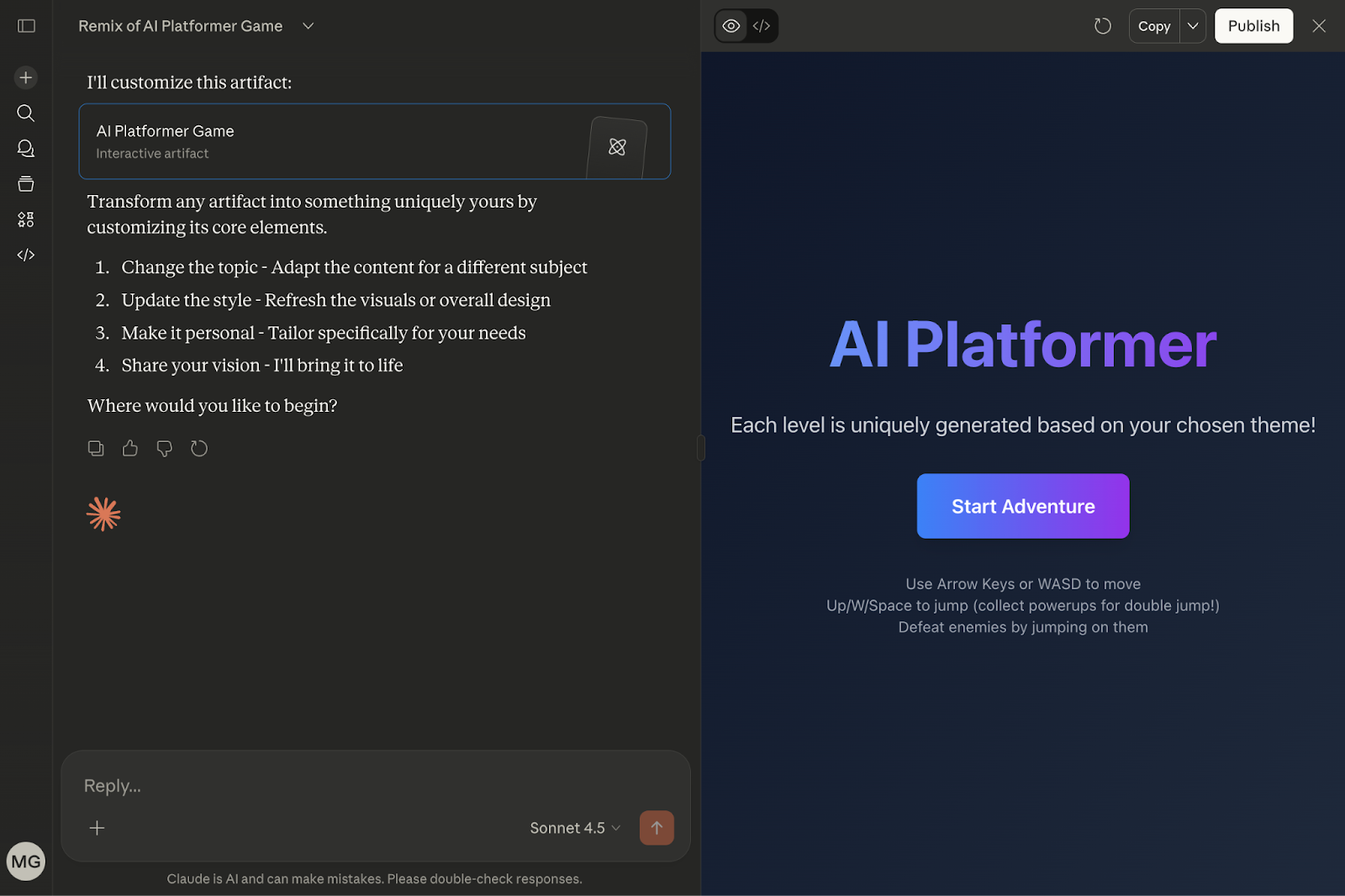
When you ask Claude to create a website or app, it creates what’s called Artifacts. Think of it as a live preview that appears on the side alongside your conversation. You can click around and interact with your creations live. No need to mess around with the code base.
You can chat with Claude on the left and see your creations come to life on the right side of the screen. Claude creates artifacts whenever your generations require more than 15 lines of code.
This is where claude works differently from other tools. You don’t need to juggle between multiple files or copy code around.
Why Claude Artifacts Matter
Here are a few key features that make Claude a great tool for beginners:
- Instant Previews: You get to interact with your application as Claude makes and customizes it. No need to copy-paste the code or switch between applications.
- Easy Customization: To customize your app, all you need to do is chat with Claude while your app automatically updates on the side.
- One-Click Download: You can export your finished app with a single click.
How Claude Artifacts Work
When you chat with Claude to build your app, it will automatically create an Artifact if your request requires more than 15 lines of code.
For our calculator example (next section), as soon as you prompt Claude to build a calculator, it will start generating the HTML, CSS, and JavaScript code. It will display that code as an interactive Artifact.
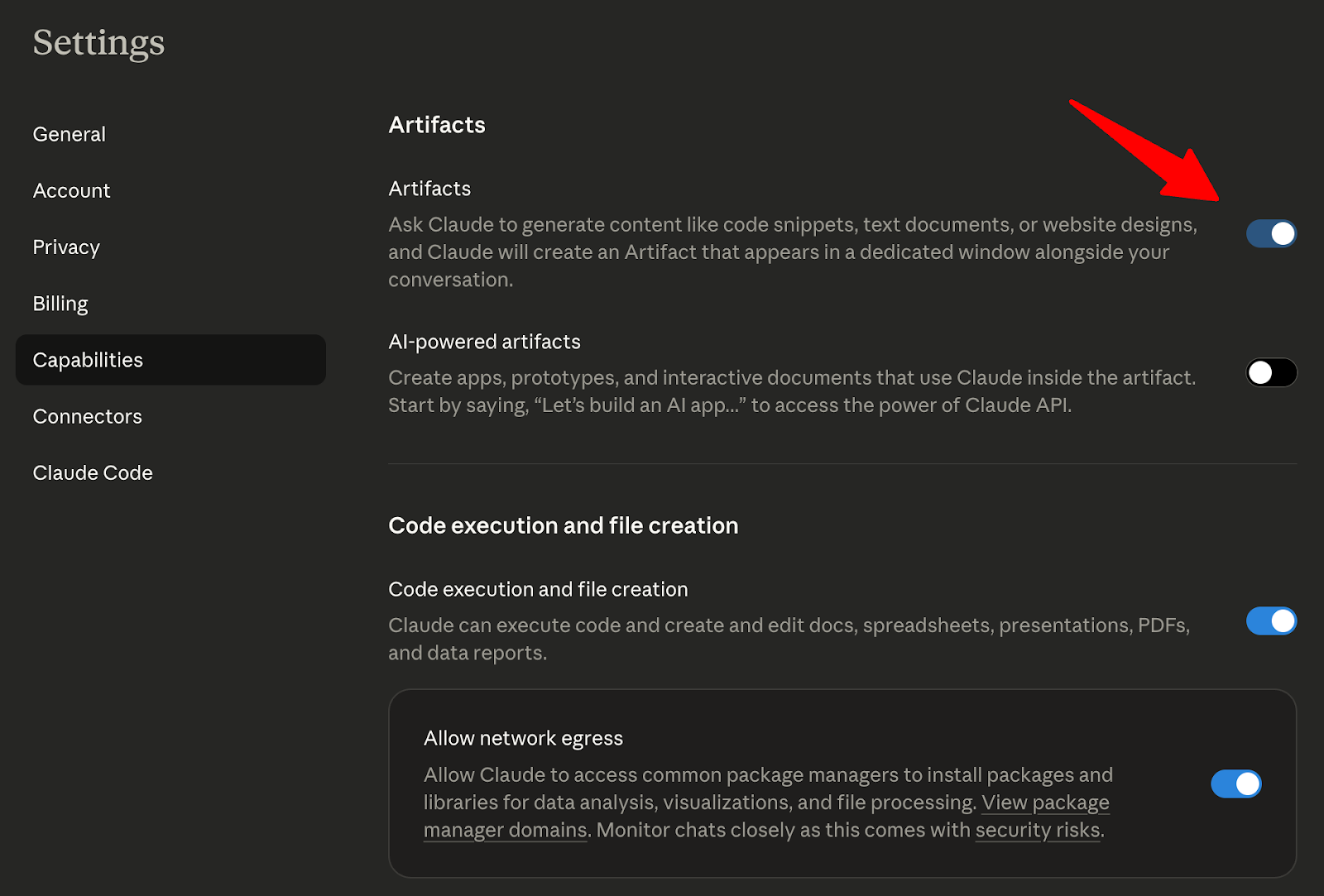
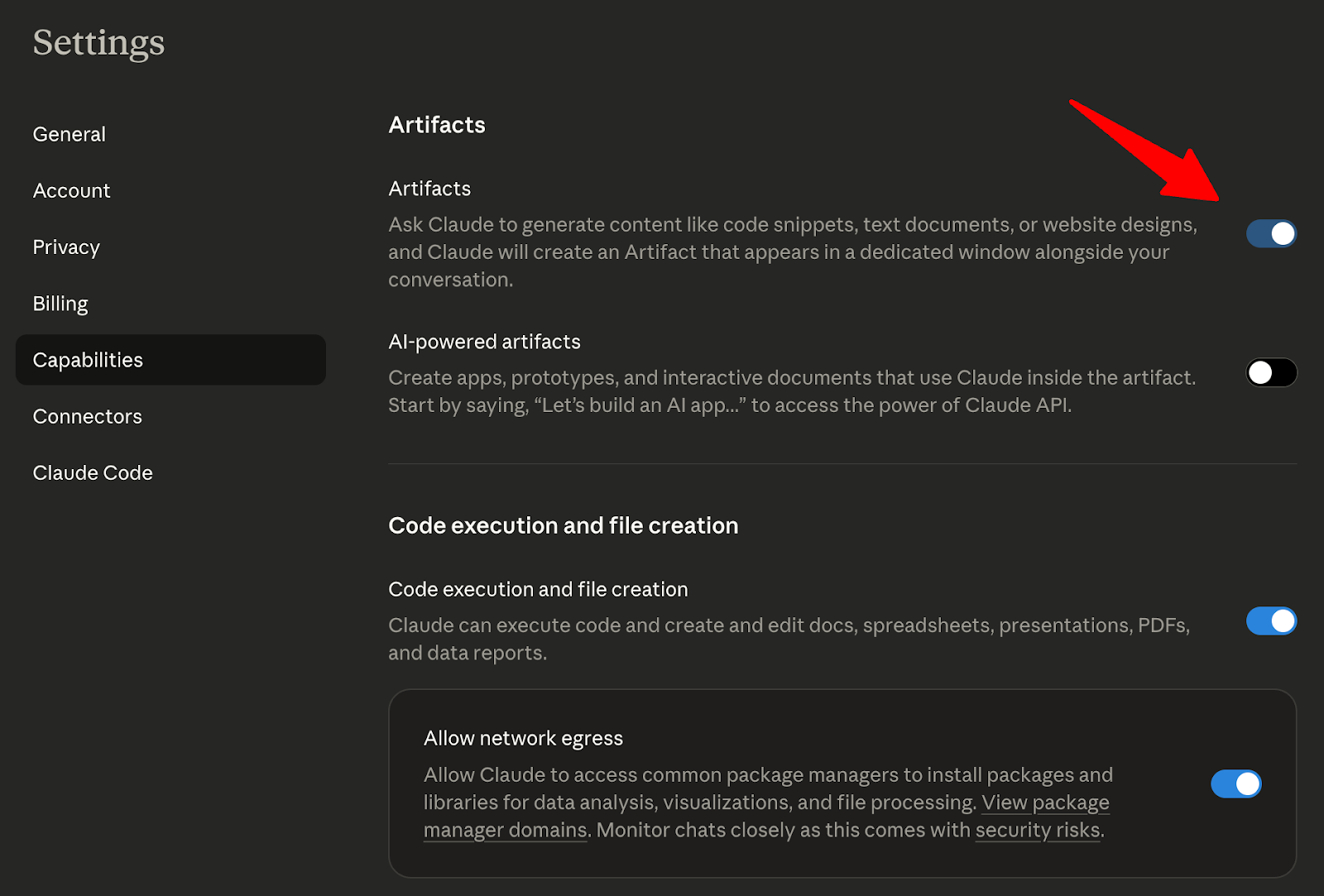
You can enable Artifacts in your Claude account by clicking your name in the bottom left and selecting Settings.
Then, you can enable Artifacts from the Capabilities section of the Settings page:
Step by Step Guide: How to Build an App Using Claude from Idea to Deployment
Step 1: Describe What You Want To Build
To keep things simple, let’s build a basic calculator as an example.
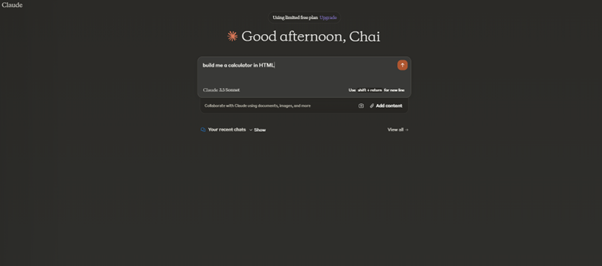
Open Claude and type:
“Build me a calculator in HTML.”
That’s it.
No need to mention a tech stack. No complex app configurations.
Within seconds, Claude generates the HTML, CSS and JavaScript required. It displays the web application’s code in a window on the right side.
Once it’s done generating the code, it will automatically show a preview of your application. If it doesn’t automatically show you a preview, click the Preview button.
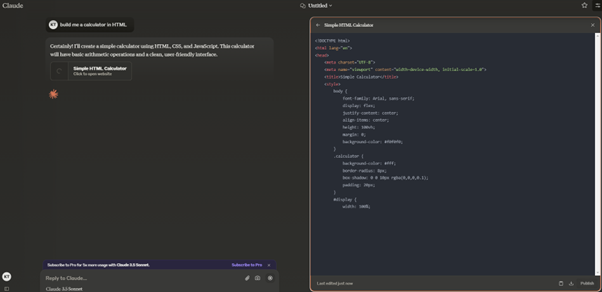
Here’s what Claude generated for my basic prompt:
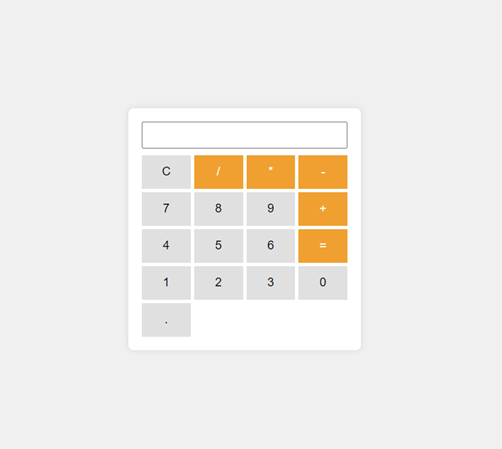
This is a fully working basic app.
You can publish it already (Step 4) or keep improving it…
This is where people realize the power of Claude. The most valuable lesson here is that good prompt engineering matters more than raw technical skill.
Step 2: Ask Claude To Customize Your App
This is where things get fun.
To customize your app, simply ask Claude to make the changes you want.
You don’t need to edit the code yourself.
Instead of opening a code editor, just ask Claude.
You might say something like:
“Make the background sky blue, the number and clear keys pink, the operations keys purple. Let the color of calculator be dark grey”
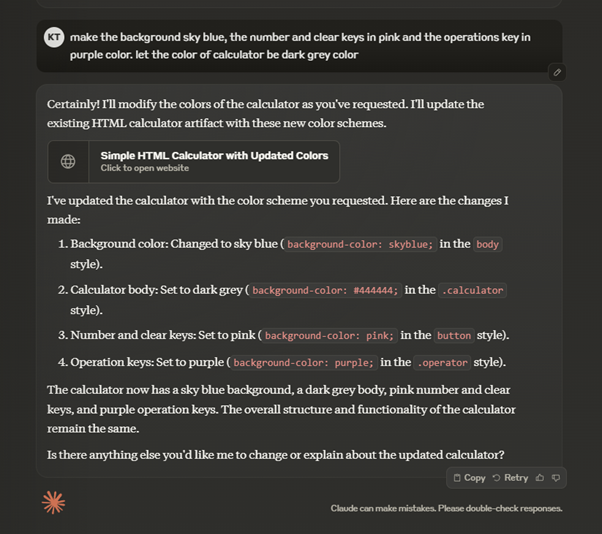
Claude updates the preview almost immediately.
With every step, Claude will provide you with an explanation of all the changes it made.
If you don’t like something, you can ask it to further customize the application.
If you see any errors, you can just copy and paste the error messages you see in the chat. Claude will begin fixing bugs immediately. You just need to ask Claude.
The entire development process is conversational. It is a lot less time consuming than a traditional coding workflow.
Here’s what Claude produced for me:
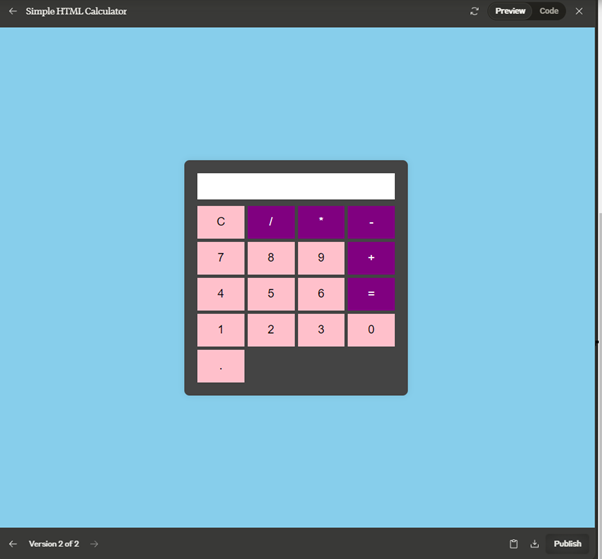
Step 3: Download the Code
Once you’re done customizing your application, download the code so you can publish the application on the web.
To download the code, click the Download icon on the bottom right of the screen.
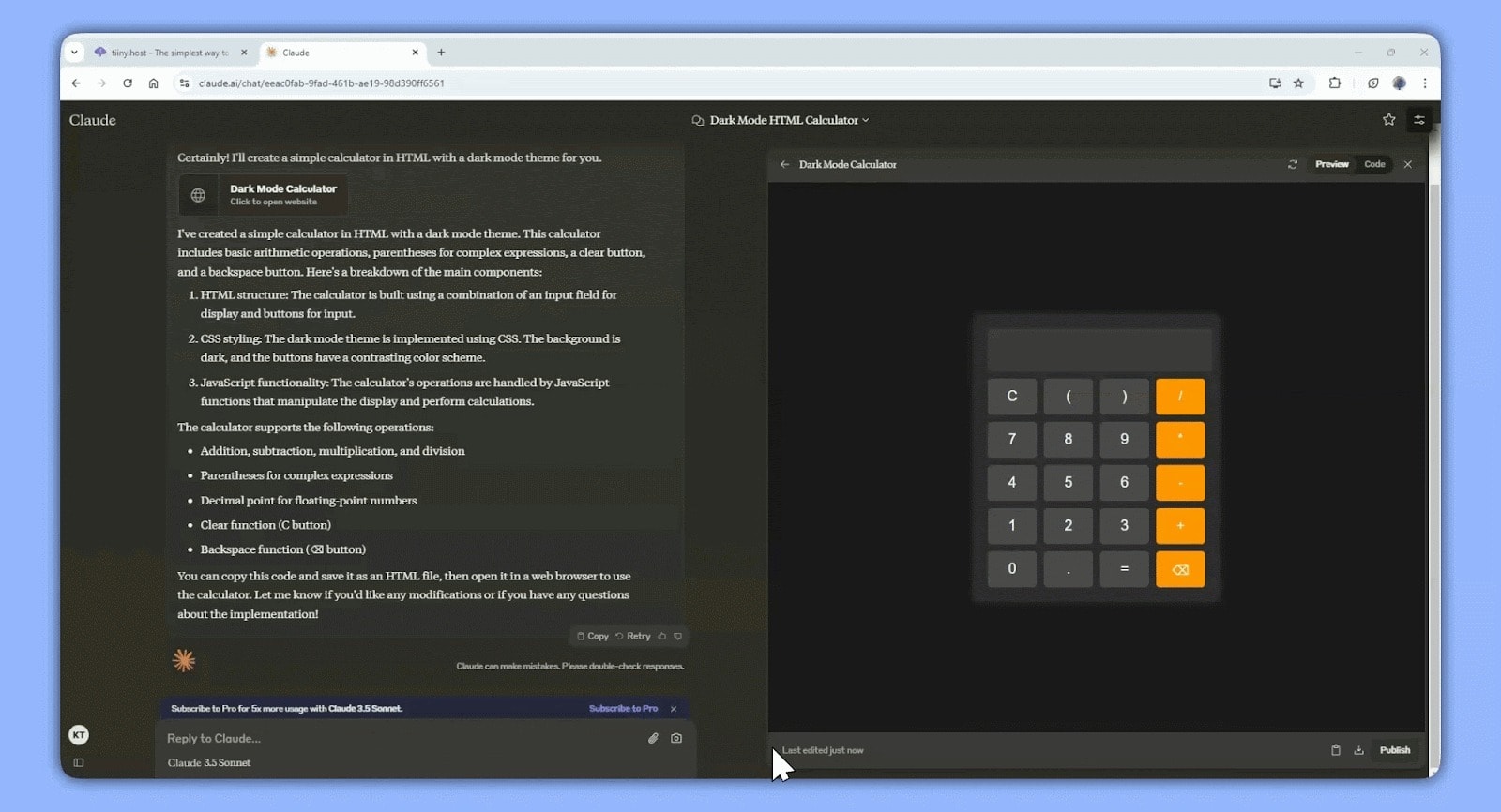
It’ll download an HTML file to your computer that contains all the code for your application.
You can now upload the downloaded file to a web hosting service to publish it on the web.
Step 4: Deploying Your App to the Web
You now have a fully functional web app that you can open in your browser, but it’s only available on your computer. To share it with other people, you will need to host it online with a web hosting service.
To publish your website, you need to host the code you downloaded on a web server. The easiest way to do this is to use a web hosting service like Tiiny.host or Vercel.
Choosing Your Hosting Platform
There are several free options for hosting simple web applications built with Claude. Here’s a quick comparison of the best options:
Platform |
Best For |
Setup Time |
Key Features |
Absolute beginners |
30 seconds |
Drag-and-drop, no account needed, instant deployment |
|
Netlify |
Git-based projects |
2-3 minutes |
Auto-deploy from GitHub, form handling, serverless functions |
Vercel |
React/Next.js apps |
2-3 minutes |
Edge network, preview deployments, blazing fast CDN |
GitHub Pages |
Developers with GitHub |
3-5 minutes |
Free with GitHub account, version control integration |
Deploying with Tiiny.host (30 Seconds):
For static websites and simple web applications, Tiiny.host is perfect.
To host your application with Tiiny.host, head to Tiiny.Host.
Drag and drop the HTML file onto the dropzone. You can also click the Upload File button and select the downloaded HTML file.
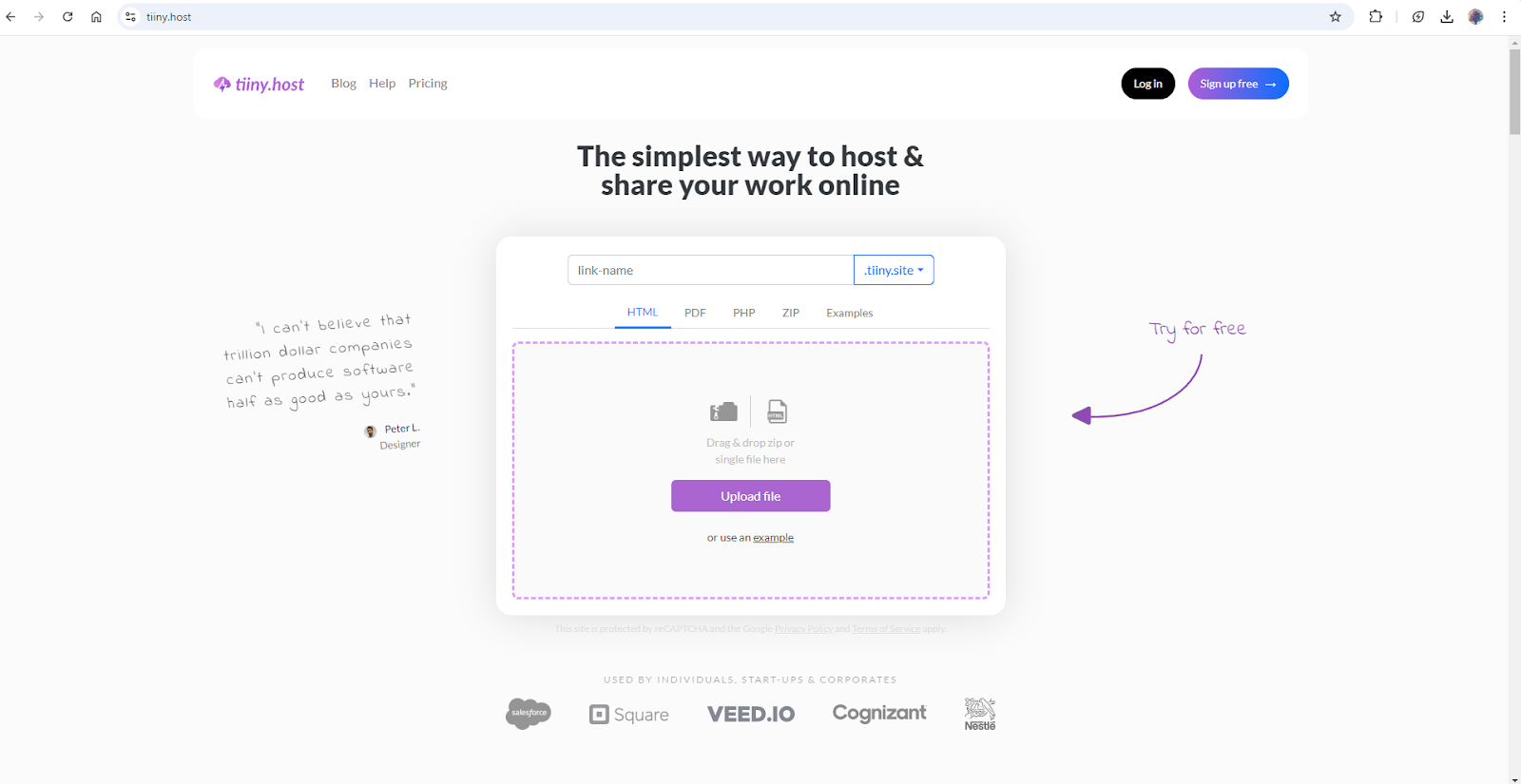
Choose a name for your link and click the Publish button to host your website.
You now have a live website you can easily share with people.
Quick Start with Alternatives
If you want to deploy your web app to Netlify, Vercel, or GitHub pages, you’ll need to upload your code to a GitHub repository. You’ll need Git installed on your computer to be able to do that.
The best part about these platforms is that your static website will automatically update when you push new changes to your GitHub repository.
Here’s a quick overview of what the process looks like with these platforms:
- Netlify: Connect your GitHub account and select your GitHub repository. Netlify will automatically re-deploy your code whenever you push new changes to GitHub.
- Vercel: Connect your GitHub repo like with Netlify. Vercel automatically builds and deploys your app in a few minutes.
- GitHub Pages: Create a username.github.io repository on GitHub. Push your code to that repository. Your web app will live at username.github.io.
If you’re interested in hosting your web app with any of these alternative platforms, you will need to learn the basics of Git. This is why we recommend Tiiny.host for most beginners.
If you want to learn more about web hosting, check out our complete guide to web hosting.
Unleash Your Creativity
The basic calculator we created is just an example of what you can build. With AI tools like Claude, you can build all kinds of simple and even complex apps.
Here are a few examples of things I created using Claude:
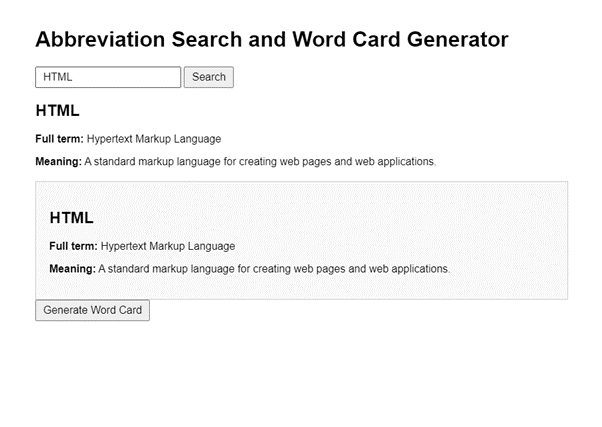
Abbreviation Search with Word Card Generator: This application allows you to enter an abbreviation and spits out its full form. It also allows you to create a shareable word card you can download.
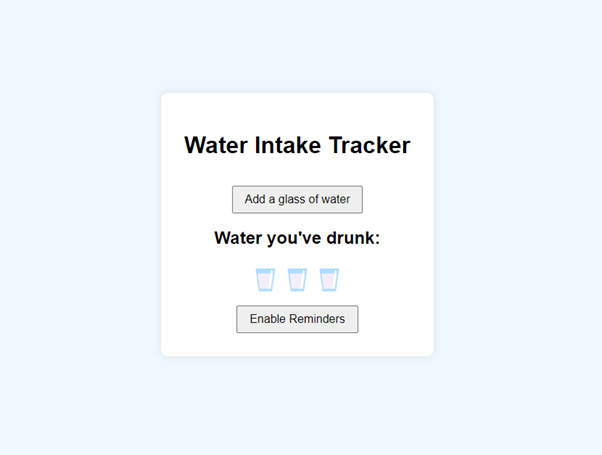
Water Intake Tracker: This in-browser app reminds you to drink water. It also tracks how many glasses of water you’ve had.
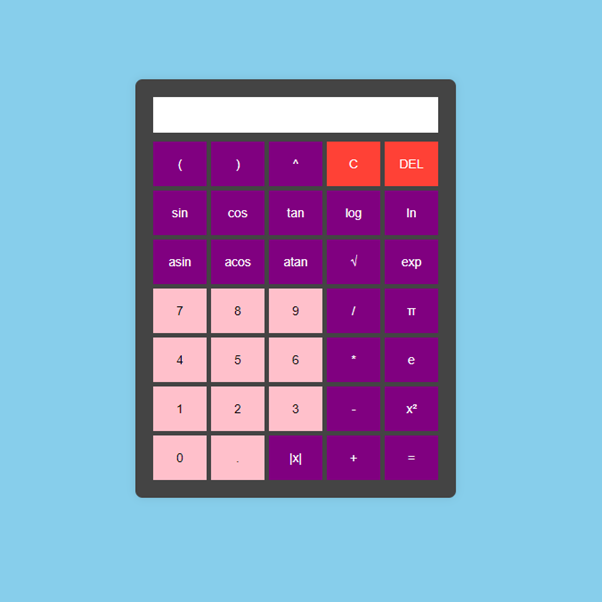
Scientific Calculator: Claude isn’t limited to creating basic applications. I asked Claude to convert our basic calculator into a scientific calculator.
Claude AI is a powerful tool that can create almost any type of application. For most basic applications, you don’t even need to know how to code. And with Tiiny.host, you can easily share your creations with others.
Beyond Claude Artifacts: Taking Your App To Production
Claude Artifacts are great for rapid prototyping. But what if your project grows?
What if you need:
- multiple project files
- a project directory
- a database schema
- integration with external tools
- or just a few other things that go beyond a single file
That’s when you should graduate to Claude Code.
When To Use Claude Code
Claude Code is a command-line application that allows you to work on complex projects that are more than a single HTML file.
When your application reaches any sort of complexity, you will want to install Claude Code. Even though it can look daunting at first, Claude Code is just an extension of the Claude web app. It allows you to extend Claude’s capabilities and customize your application beyond a single HTML file.
Claude web app is great for prototyping basic apps, but if you want to create complex apps, you will need to use Claude Code.
Unlike the Claude Web App, Claude Code can work on multiple project files and create production-ready code. Instead of talking to Claude using the web app, you talk to it using an intuitive terminal application.
Install Claude Code
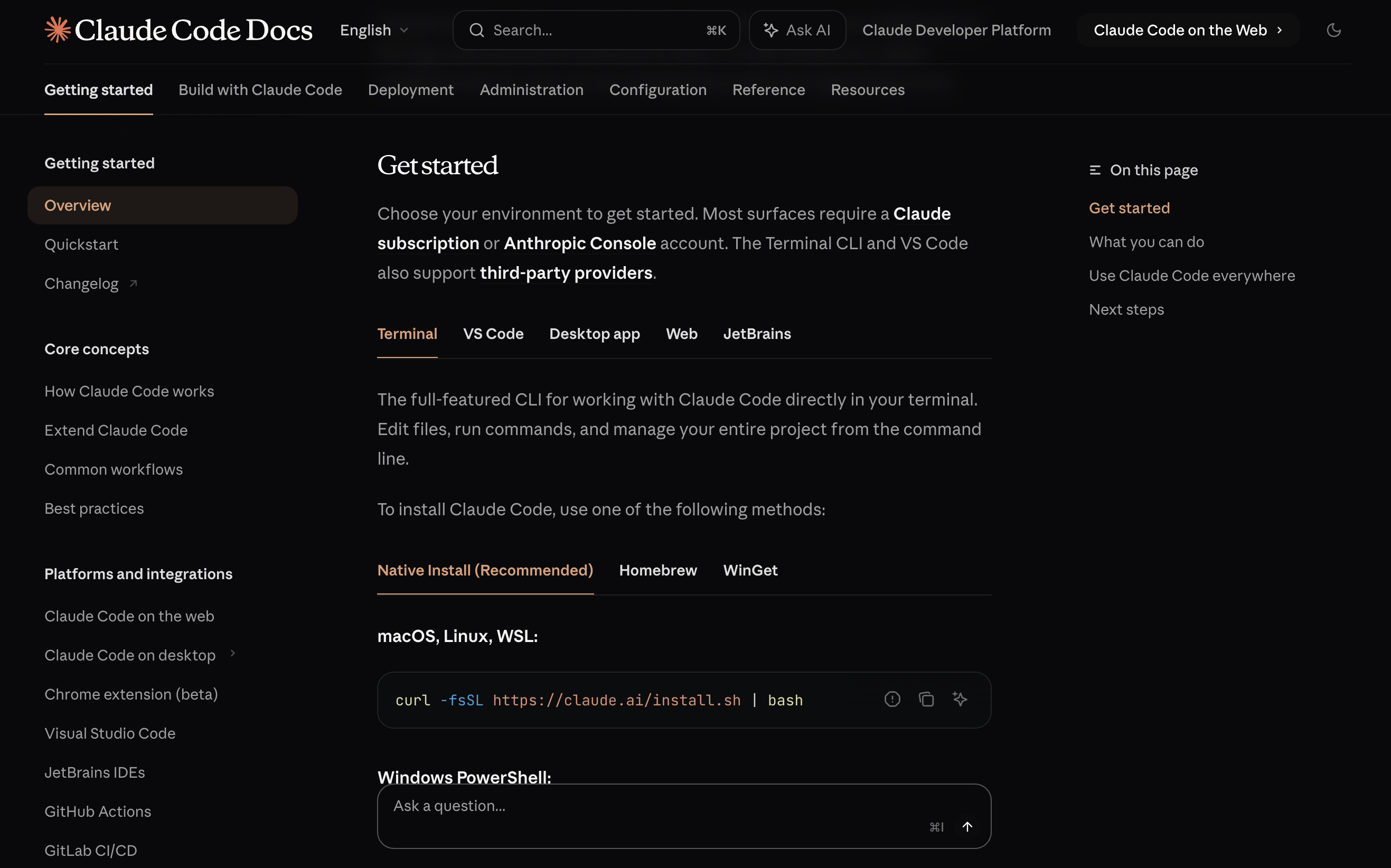
To install Claude Code, visit Claude Code’s documentation site. It offers simple instructions for how to install it on your machine:
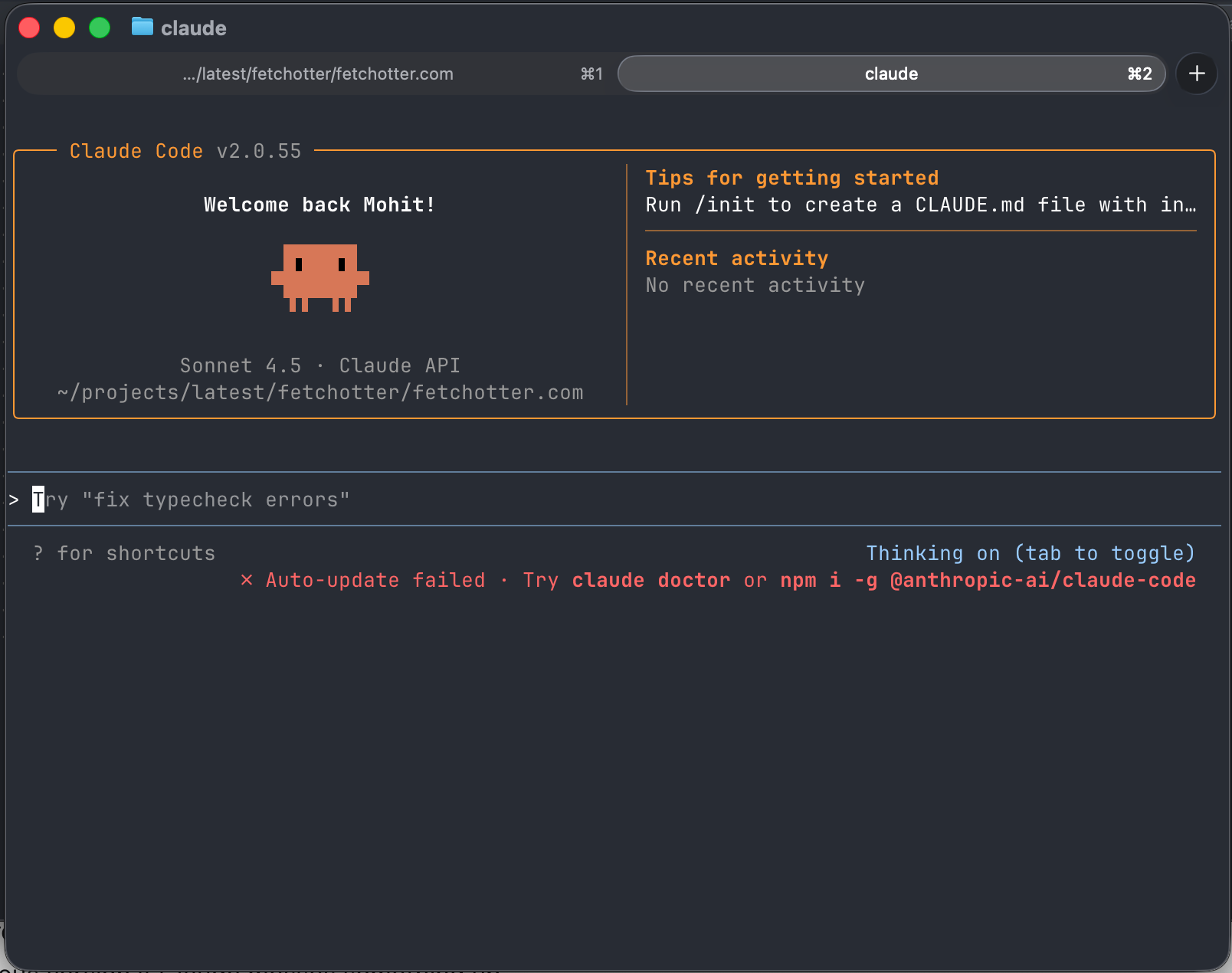
After installation, open your terminal, navigate to your Claude project folder, type claude and press enter. This is what the terminal UI looks like:
To use Claude Code, you need to subscribe to Claude’s Pro or Max plan. Or you can bring your own api keys.
It might look intimidating at first. But it’s just a simple application that you can use to interact with Claude. You are still having a conversation with Claude. The only difference is now you can use powerful terminal commands.
The best part about installing Claude Code is that you can start using Git and GitHub for version control. You can save/commit your progress to Git after every change. That allows you to go back to a previous version if Claude Code messes something up.
You can also create a special markdown file with instructions and suggestions called CLAUDE.md. Claude Code will follow these instructions when making editing files in your project folder.
Model Comparison: Which Claude Model Should You Use?
There are three different Claude variants available: Haiku, Sonnet and Opus. Opus being the most powerful and Haiku being the least.
Claude Sonnet is great for working on simple web applications. It’s fast and performs really well for most coding tasks. The best part? It’s available on the free tier.
Claude Opus, on the other hand, is the largest and the slowest model offered by Anthropic. It’s great at working on complex tasks. The Opus model is only available to users on the Pro or Max plans. Claude Opus can easily work on your whole project. It can add features to your existing codebases.
Claude Co Work: The New Feature You Should Not Ignore
Claude Code is meant for software development but a lot of people had started using it for other work. People were using it as a general purpose AI agent to do tasks like organizing files and folders.
Anthropic saw that, and on January 12th 2026, shipped Claude Cowork.
Claude Cowork is built into the Claude desktop app. Cowork is built on the same foundations as Claude Code, but it’s made for everyone. You can point it at a folder and tell it what to do in plain natural language. Whether it’s organizing your downloads folder or renaming a hundreds of files in a particular pattern, it can do it all.
Troubleshooting Common Issues
Artifacts Window Not Appearing
This can happen if your account doesn’t have Artifacts enabled. Here’s how you can enable them:
- Click on your Profile in the bottom left of the screen.
- Select Settings from the drop-down menu.
- Select the Capabilities tab on the Settings page.
- Toggle Artifacts on.
Even though Claude automatically creates Artifacts most of the time, sometimes you might need to nudge it towards creating one. Simply ask it to create an Artifact and it will do so.
Code has errors or doesn’t run
If the code generated by Claude has errors, try clicking the “Fix with Claude” button that appears near the error messages. Claude will automatically try to fix the errors.
If the errors persist, copy the errors and paste them in the chat and ask Claude to fix those errors.
If the code doesn’t run or function the way you want it to, simply describe the error/mistake to Claude and it will try to fix it.
Claude “forgets” earlier decisions in a long session
When you’re building inside a long chat, Claude may start ignoring earlier messages. This is because Claude has finite working memory and can only remember so much.
How to fix: Ask Claude to write a summary of the entire chat. Then, copy the summary and paste it in a new chat.
App looks different after deployment
Sometimes CSS and JavaScript might not load correctly. Before uploading your code to Tiiny.host, open the HTML file in your browser.
If your website looks completely different or lacks visual effects, it is probably not loading the required CSS or JavaScript.
If that’s the case, ask Claude to create three separate files. Then, download the files and try re-uploading them to Tiiny.host.
Can’t Modify Downloaded HTML
To modify the downloaded HTML file, you will need to open it with a text or code editor application. Right click the file and select a text or code editor application from the Open With menu.
FAQ
Does my app need to be basic HTML and CSS?
No, your app doesn’t need to be strictly HTML and CSS to host it with Tiiny.host. Your app can even be a full-blown PHP application.
Can I use a custom domain name for my app?
You can bring your own custom domains to host your web applications. Tiiny.host offers this feature on all the Pro plans.
Can I customize the app even if I don’t know how to code?
For most simple applications, you only need to chat with Claude in order to customize them. You can simply ask Claude to add features or customize different aspects such as colors of your app.
How do I host apps with multiple files using Tiiny.host?
Claude might give you more than one file if the app you’re building is large in size. It might give you separate HTML, CSS, and JavaScript files. To host an application with multiple files, you need to simply create a ZIP file and upload it to Tiiny.host.
If you’re on Windows, read our guide on how to create a ZIP file on Windows.
Can I use this process to build a portfolio or a website for my business?
Claude is powerful enough to build even complex websites. You simply need to give Claude a prompt about what type of website you want it to build.
Can I use Claude AI for free?
Anthropic offers a free tier of Claude that allows you to use the Sonnet model. The free tier includes the Artifacts feature.
What’s the difference between Claude and ChatGPT for coding?
Claude and ChatGPT are both highly capable models. Both can help you create web applications and websites.
ChatGPT is trained to be a general-purpose AI assistant that is good at everything. Claude, on the other hand, is optimized for advanced reasoning and code generation. Combined with its Artifacts feature, Claude is particularly powerful for rapid prototyping. Claude is often preferred for more complex coding tasks.
Can Claude build mobile apps?
Claude’s web interface can be used to easily build and preview web applications. Even though Claude can generate code for mobile applications, it can’t generate full-blown mobile apps on its own.
If you want to use Claude to build mobile apps, you will need to set up the project locally and use Claude Code to generate code for parts of your application.
How do I share my Claude Artifact?
To share your Claude Artifact with other people, you can download the generated HTML file, and upload it to a web host of your choosing. The easiest way to do it is to upload the artifact to Tiiny.host.
But that’s not the only way to do so. You can also upload the HTML file to Vercel, GitHub Pages, Netlify, or Cloudflare Pages.
Claude Artifacts vs Claude Project: What’s the Difference?
A Claude Artifact is a live preview that appears on the side when you build an application using Claude’s web interface. Claude Projects is a way to organize your chats. Think of them like a folder that can hold multiple chats.